Use SOVHELM on your phone, tablet or computer with the same account and workspace access. Choose the Android app, an installed web app or your browser.
Open the Google Play listing on your Android device and choose Install.
Open SOVHELM and sign in with your existing account.
Prefer the home-screen web app?
In Chrome, open the SOVHELM web app. Open Chrome's menu and choose Install app or Add to Home screen, then follow the prompts. The wording depends on your browser version.
Home-screen web app available
iPhone and iPad
Add the SOVHELM web app to your home screen using Safari.
Open the web app and sign in with your existing account.
Bookmark the app address to return to your workspace.
Opening a link inside another app? Switch to Safari on iPhone or iPad, or Chrome on Android, to find the home-screen installation options.
One product / Across devices
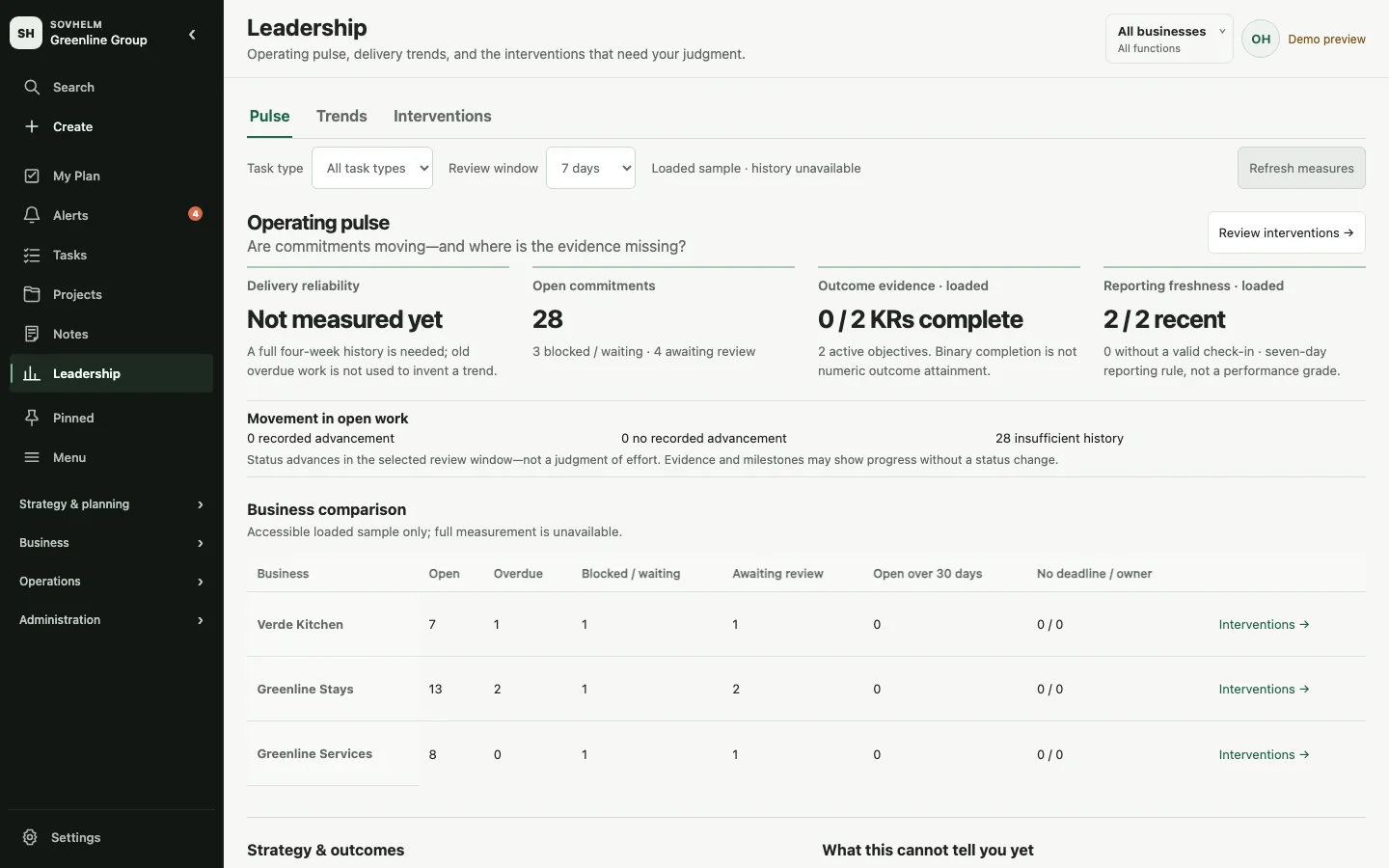
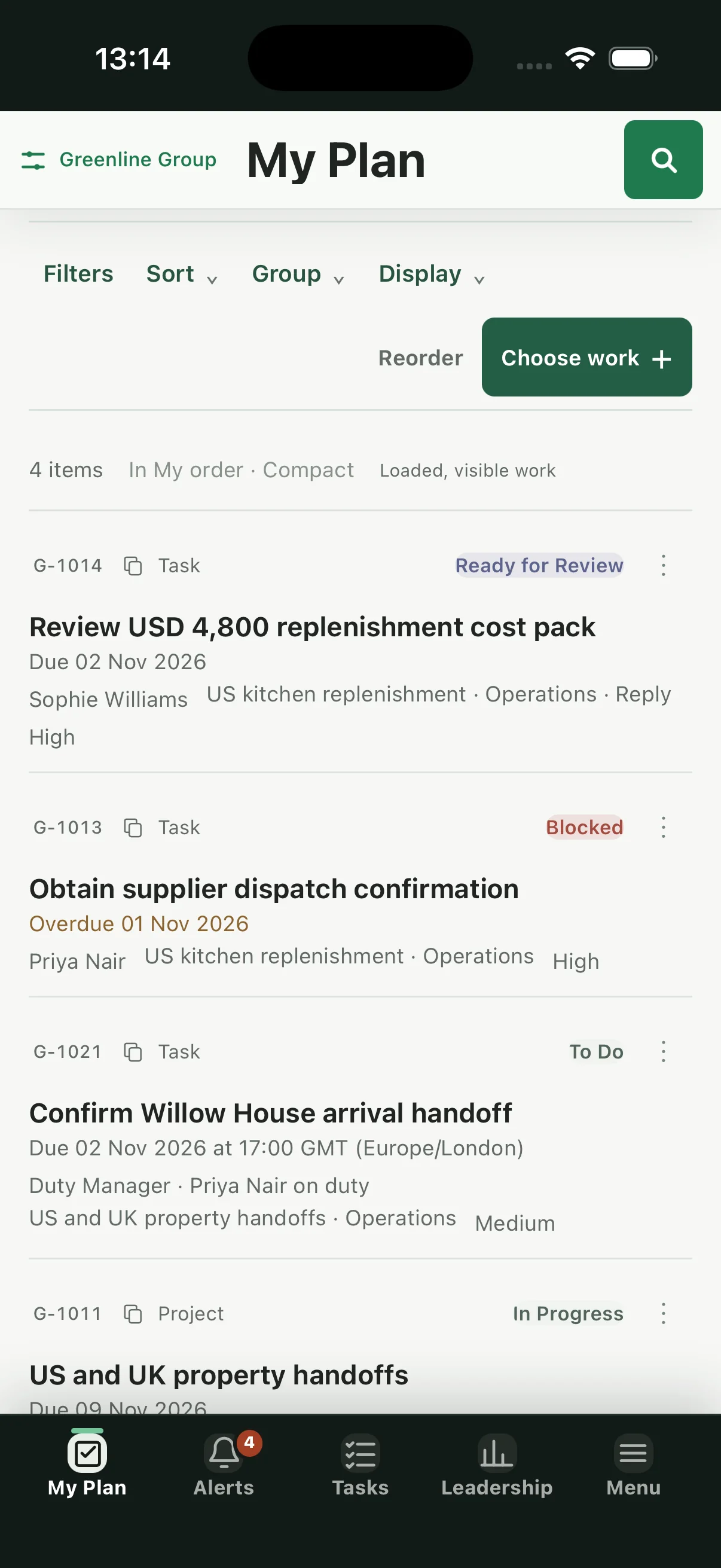
The same work. A different screen.
Review the group picture at your desk and return to your own plan on your phone. Your account and access rules still apply.
Desktop browser / Leadership PulseFictional public demo records, not customer results.Home-screen web app / My PlaniPhone 17, iOS 26.5 simulator with fictional demo data. Demo profile, persona and tour controls are omitted for clarity. Not a native App Store app or a physical-device capture; appearance can vary.
These screens illustrate the web workspace, not native-app feature parity, offline availability or notification delivery. Explore the product guide.
Before you start
Your account comes with you.
Same account and access
Use your existing SOVHELM account. Installing an app does not create a new workspace or change your permissions. You may need to sign in separately in each browser or installed app.
Internet required
An internet connection is required to use your workspace. Installation is not a promise of offline access, and native and web app capabilities can differ.
Notifications are a separate choice
Installation does not enable notifications. Opt in separately in the app and allow the relevant device or browser permission. Availability and delivery depend on your device, channel setup and notification settings.
Continue on your phoneScan to open the web app, then follow the instructions for your device.app.sovhelm.com/app/